 Snagline
How to create a site inspection report with photos
Turn a site walk-round into a branded PDF inspection report: pick a layout, filter by status, add photos, plans and a sign-off, and share it on site.
In this video
Transcript
Site inspection report with photos, from your phone. Walk the site, then share a branded PDF before you leave.
Numbered issues, status at a glance. Issues are numbered in order and coloured by status, so you can see what is open, in progress, fixed or closed without opening anything.
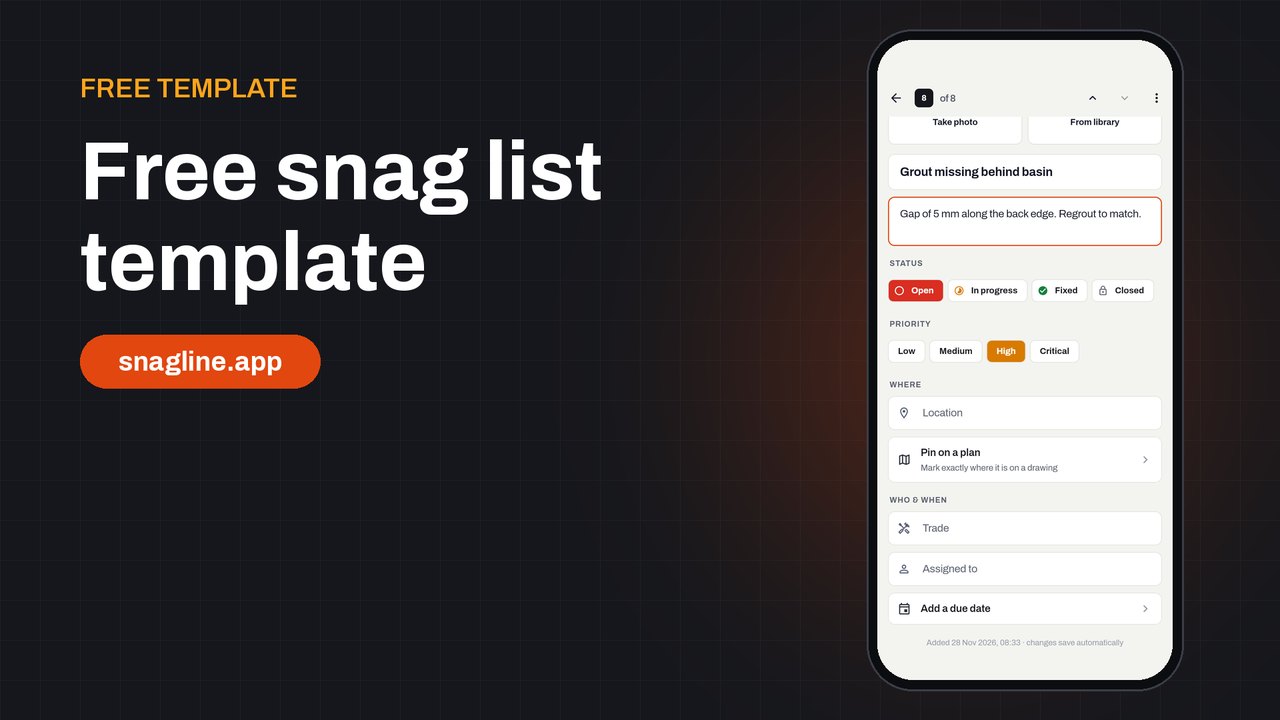
Describe the snag. Write what is wrong and what needs doing, the way you would say it to the trade: where it is, what is wrong, how big.
Priority, location and trade. Set the priority, pick the room or area, and add the trade and who is responsible so the list can be split and sent on.
Finished the walk-round?. When the inspection is done, make the report from the project screen. No typing it up later.
Choose a layout. Classic puts each issue in a row with photos beside it, Bold gives big photos and coloured status bars, Compact is a dense table for long lists.
Filter by status. Include only open issues for the contractor, or everything for the client. Choose how many photos per issue.
Your logo, photos, plans and signature. Reports carry your logo and company details, the marked-up photos, the plans with pins and a sign-off. Share the PDF or export CSV for Excel.
Inside the PDF. Cover with totals and project details, each issue with photos and status, then the plans with pins and the inspector's sign-off.
Snagline: snag lists, punch lists and site audits. Free for up to 3 projects, on iPhone. Get it at snagline.app
 How to make a snag list on your phone
 Punch list app: add, track and close out items
 How to mark up snagging photos
 Pin defects on floor plans
 Free snagging list template: Word, Excel and PDF