 Snagline
How to make a snag list on your phone
Make a snag list on iPhone with Snagline: numbered issues, marked-up photos, pins on a floor plan, a branded PDF report and tracking to handover.
In this video
- How to make a snag list on your phone
- Every site is a project
- Numbered issues, status at a glance
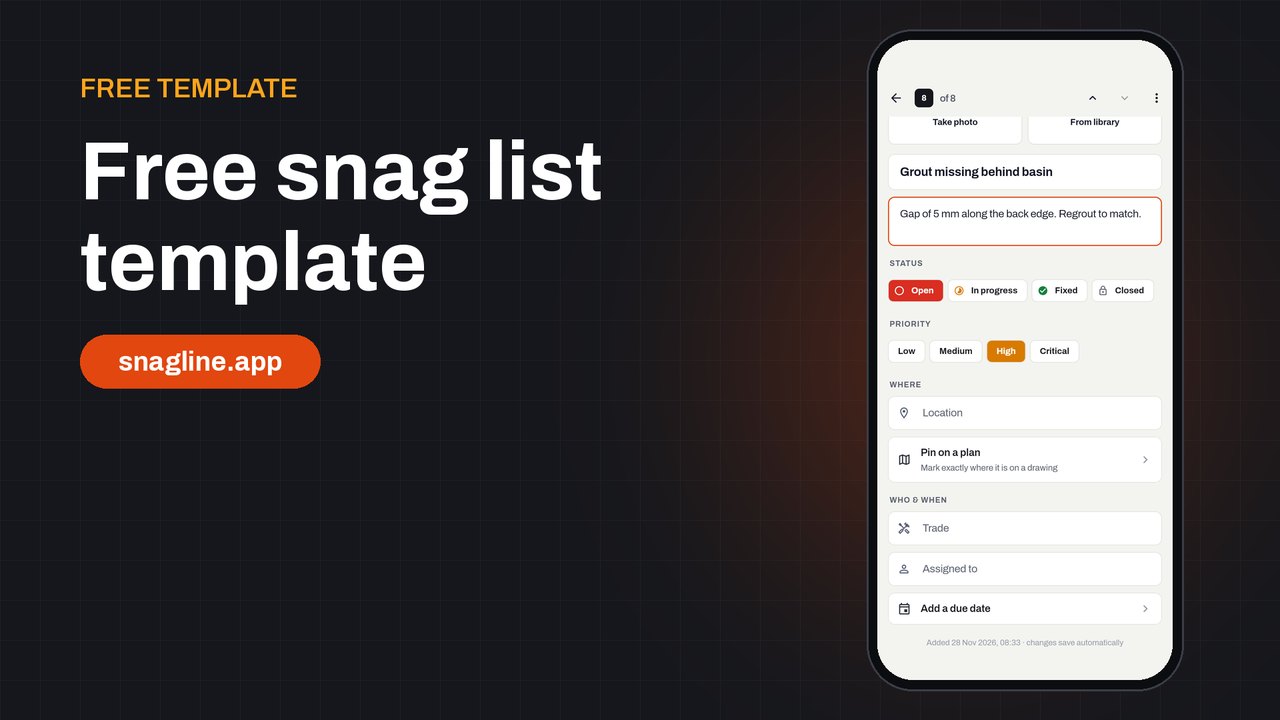
- Describe the snag
- Priority, location and trade
- Saved and numbered automatically
- Several photos per issue
- Mark up the photo
- Your pen and colour are remembered
- Saved with the issue
- Add the floor plan: PDF or image
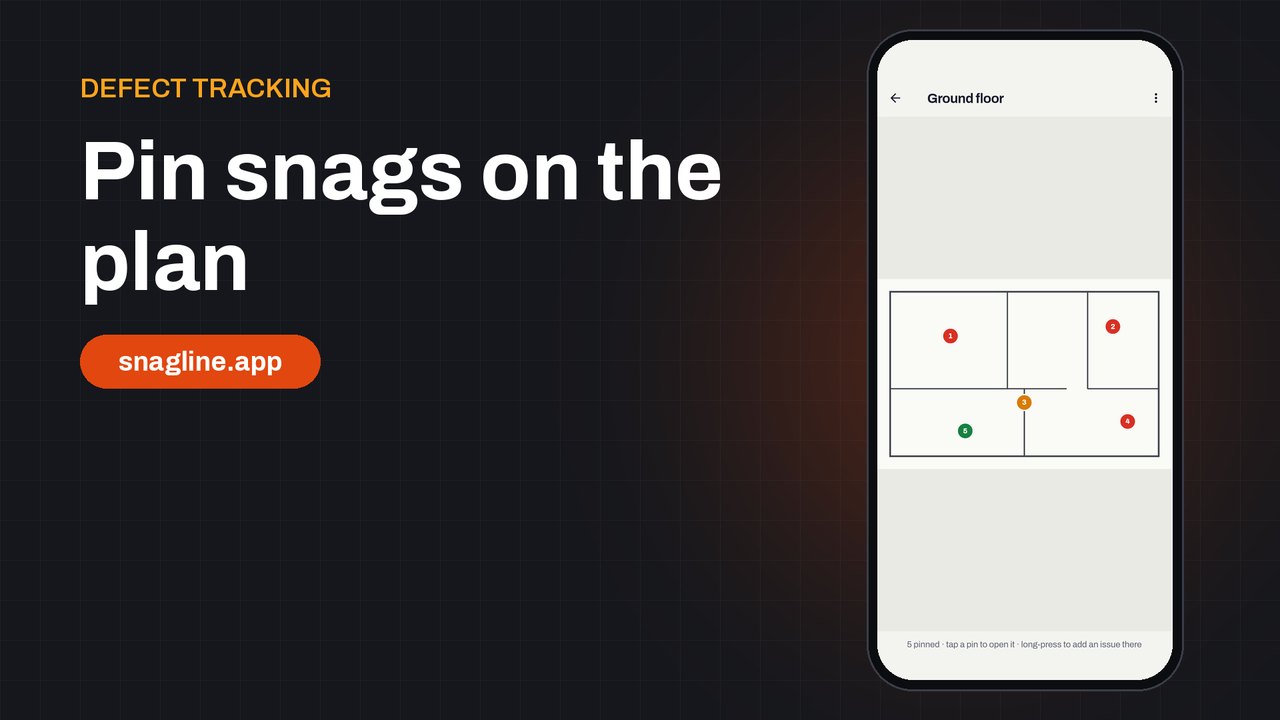
- Numbered pins, coloured by status
- Tap a pin to open the issue
- Long-press to add an issue there
- The pin goes in the report too
- Finished the walk-round?
- Choose a layout
- Filter by status
- Your logo, photos, plans and signature
- The finished PDF report
- Drag to reorder: numbers follow
- Mark issues fixed as trades finish
- See what is outstanding or overdue
- Snagline: snag lists, punch lists and site audits
Transcript
How to make a snag list on your phone. Issues, marked-up photos, plan pins and a PDF report, in about a minute and a half.
Every site is a project. Each job gets its own project with the client, address and reference, and a running count of open and overdue issues.
Numbered issues, status at a glance. Issues are numbered in order and coloured by status, so you can see what is open, in progress, fixed or closed without opening anything.
Describe the snag. Write what is wrong and what needs doing, the way you would say it to the trade: where it is, what is wrong, how big.
Priority, location and trade. Set the priority, pick the room or area, and add the trade and who is responsible so the list can be split and sent on.
Saved and numbered automatically. There is no save button: the issue is stored on the phone straight away and gets the next number on the list.
Several photos per issue. Add as many photos as you need from the camera or the library. Each one is time-stamped and kept with the issue.
Mark up the photo. Draw arrows, boxes, circles and freehand lines on the photo to show exactly where the defect is.
Your pen and colour are remembered. Add a text label, pick a colour and line width. The tool you used last is ready next time.
Saved with the issue. The marked-up photo replaces the original in the issue and the report. The original is kept, so you can redo the markup.
Add the floor plan: PDF or image. Add a drawing as a PDF page or a photo of the plan. A project can hold several plans, one per floor or area.
Numbered pins, coloured by status. Every issue pinned to the plan shows its number in its status colour, so the plan becomes a map of what is left to do.
Tap a pin to open the issue. Tap any pin to jump straight to that issue, with its photos, notes and who is fixing it.
Long-press to add an issue there. Long-press anywhere on the plan to create a new issue already pinned to that spot.
The pin goes in the report too. Plans print in the PDF report with the same numbered pins, so whoever fixes it can find it.
Finished the walk-round?. When the inspection is done, make the report from the project screen. No typing it up later.
Choose a layout. Classic puts each issue in a row with photos beside it, Bold gives big photos and coloured status bars, Compact is a dense table for long lists.
Filter by status. Include only open issues for the contractor, or everything for the client. Choose how many photos per issue.
Your logo, photos, plans and signature. Reports carry your logo and company details, the marked-up photos, the plans with pins and a sign-off. Share the PDF or export CSV for Excel.
The finished PDF report. A cover page with the totals, every issue with its photos and status, then the plans with numbered pins and the sign-off.
Drag to reorder: numbers follow. Put the list in walk-round order. Issue numbers follow the order, so the list and the report always match.
Mark issues fixed as trades finish. As each item is put right, mark it fixed. When it has been checked, close it.
See what is outstanding or overdue. Filter to what is still outstanding, or overdue against its due date, before the next visit or the handover.
Snagline: snag lists, punch lists and site audits. Free for up to 3 projects, on iPhone. Get it at snagline.app
More videos
 Punch list app: add, track and close out items0:44 · Punch list app
 How to mark up snagging photos0:38 · Snagging photos
 Pin defects on floor plans0:27 · Defect tracking
 How to create a site inspection report with photos0:42 · Inspection report
 Free snagging list template: Word, Excel and PDF0:39 · Free template